

Overview: #
Microsoft Learning Accelerators, a new category of learning tools included with M365 that help teachers save time creating, reviewing, and analysing practice assignments and provides students real-time feedback.
Within M365 there are also Learning Tools that support with Math and Numeracy.
Where can I use these Math Learning Tools? #
Math learning tools embedded across Microsoft

*Please note that Maths solver in Edge will only be available if your device has been set up with this feature enabled
Math Assistant in OneNote: #
Equation Tools in Word and OneNote #
Create math quizzes in Forms #
Math Solver mobile app and website #
- Math Solver offers math help for simple arithmetic to advanced calculus for learners of all ages and abilities.
- Type, draw, or scan a problem
- Learn from solution steps, graphs, and video content
- Practice with quizzes
- mathsolver.microsoft.com
Maths Progress in Teams #
Maths Progress is available in Teams for educators to create maths assessments and assignments.
How to create a Maths Progress assignment #
1. Choose a class team.
2. Select Create a new assignment.
3. Navigate down to Learning Accelerators, choose Maths Progress. This will let you attach a Maths Progress resource to this assignment.

4. Choose the Generate tab to begin using AI assistance for this assignment.
5. Select an option from the Category dropdown menu.
6. Choose a topic.
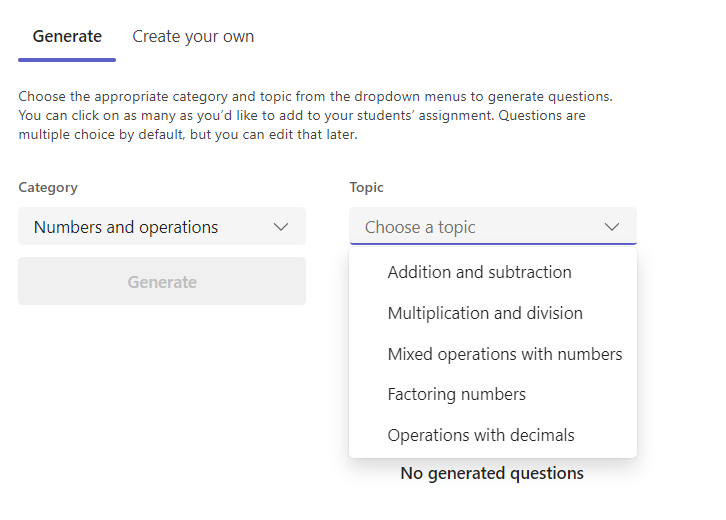
7. Select the Generate button.
Microsoft’s AI will provide examples of problems of various complexities based on the category and topic selected. You can now choose which problems to include in your assignment by selecting the card.
Your selected problems will appear in the Assignment Questions panel.
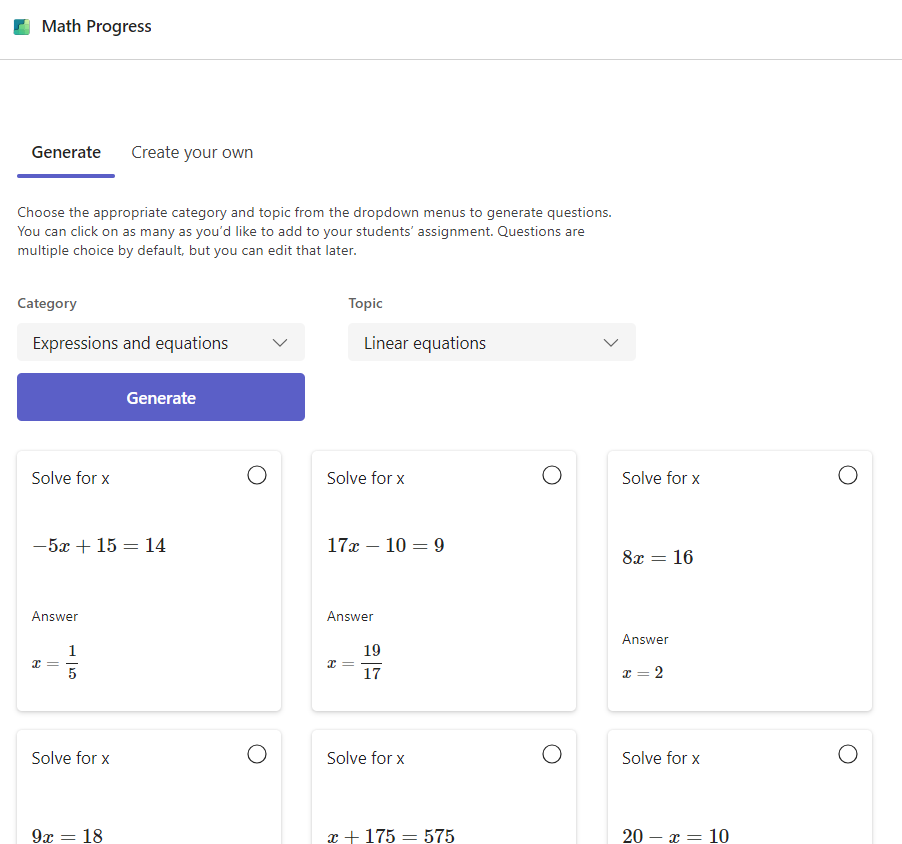
Note: If your desired topic is not supported for problem generation, you can create your questions by navigating to the Create your own tab.
8. Choose the Next button to proceed.
9. On the next screen, all the problems you selected will appear as multiple choice questions by default. Answers will be prepopulated with the correct answer shown. Even distraction answers are generated by AI to reflect common mistakes students may make in solving the problem, so they aren’t random numbers or expressions.
10. You can edit any problem by choosing the Edit button.
- All answer fields in the problem can be modified.
- Change the question type from Multiple Choice to a Short Answer.
11. You can also customize your assignment with toggle switches for:
- Show your work: If selected, students will be asked to upload images of their work. Students can do this by sharing images or links to their OneNote pages with their work.
Note: Microsoft Teams Education does not perform any analysis of uploaded images. Any uploaded visual content is only for the educator to review.
- Student rating: Allows students to share if they found the question easy, hard, or just right to answer to help narrow down areas where they may be struggling. Shuffle question order: Randomly reorders the problems for each student to help prevent cheating.
12. Choose the Done button when you are happy with the results. You will be taken back to the assignment view.
Review the steps for creating an assignment for further information on how to assign the assignment to your class.
To find out more please visit Microsoft Support: