


What is Modify Content?
As well as helping you create new learning materials the Teaching Tools within the Teach Module can also help you adapt content you already have.
Modify Existing Content is now available in Teach, making it easy to tailor existing materials for your own learning context.
You can paste in your text – or upload a Word document or PDF – choose how you want to modify it, and then review the AI‑generated suggestions.
Importantly, every modification is offered as a suggestion. You stay in control by reviewing, editing, approving, or regenerating the content before using it.
There are four ways to modify your content:
- Align to Standards
- Differentiate Instructions
- Modify Reading Level
- Add Supporting Examples

Align to Standards
Show how your content meets specific curriculum requirements. You can select one or more standards from Curriculum for Excellence (standards are currently being updated based on feedback).
Differentiate Instructions
Adding step by step guidance, including hints or example resources or creating slightly different versions of the same task. This helps ensure all learners can access the same learning goals.
Modify Reading Level
Rewrite text to match a specific reading level while keeping the original meaning and key vocabulary. You can also generate a glossary with clear, age‑appropriate definitions at the end of the passage.
Add Supporting Examples
Enrich your content with real‑world, historical, or scientific examples that make learning more relatable, without changing your original text.
For example, when introducing ecosystems, you might add references to a local pond or a school garden to help learners connect ideas to their own experiences.
How to use it
Here is a quick look at how Modify Content works:
- Open Teach and select Modify Content
- Paste your content or upload a Word or PDF file for example
- Choose your modification – Align to Standards, Differentiate Instructions, Modify Reading Level, or Add Supporting Examples
- Configure your options – grade level, scaffold type, number of examples, and more
- Generate and review – the AI produces a modified version for you to approve, edit, or regenerate
- Save your result – download as a Word document or copy the text directly.
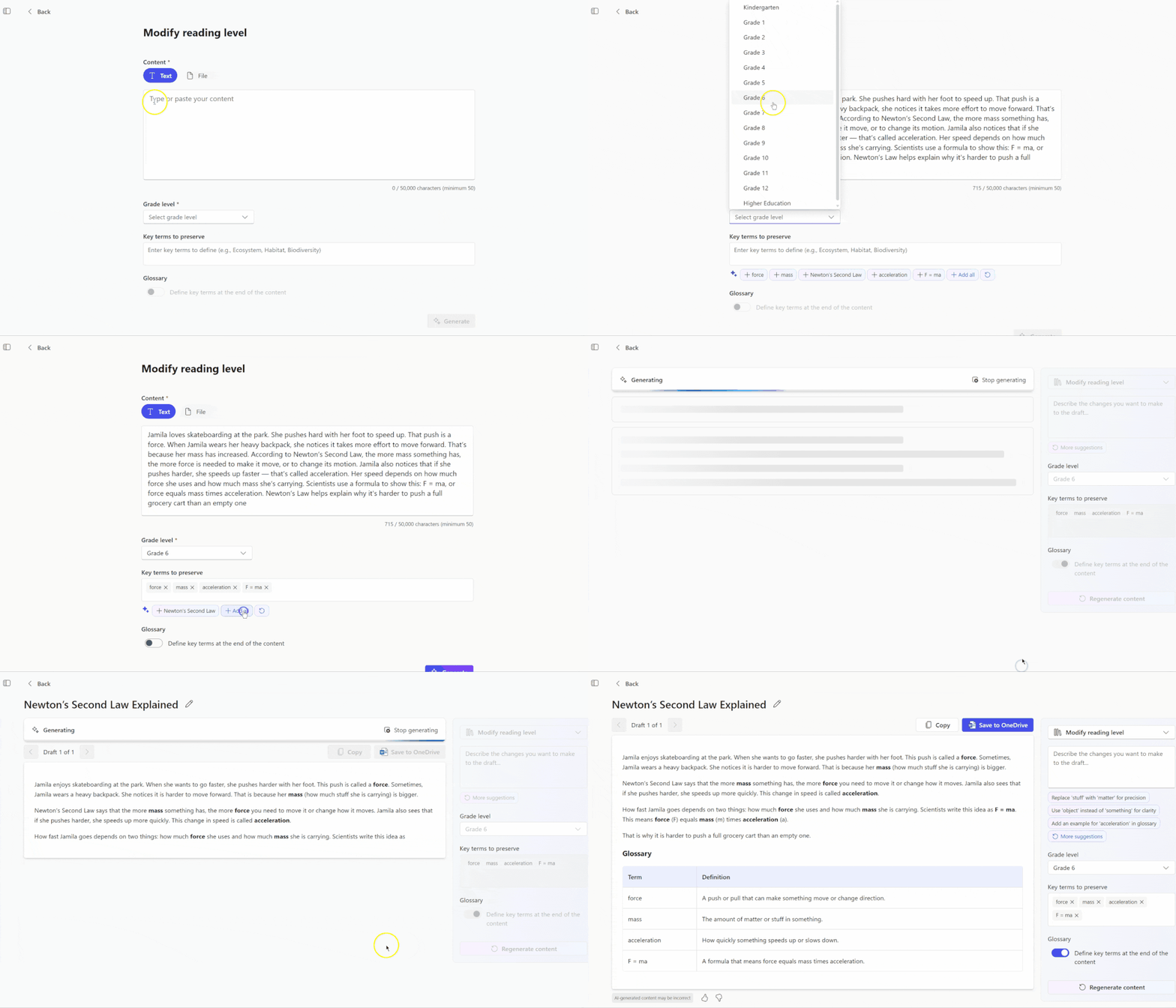
Tip: You can refine the output using the description box to request adjustments — like changing sentence length, clarifying a concept, or modifying specific sections.
All AI suggestions can be approved, edited, or regenerated until you’re happy with the final learning content. Always review before saving or sharing with learners.
Appropriate Use: Generative AI
Please be aware that these Generative AI tools contain functionality which allows the upload of pictures and files. It is the responsibility of the user not to upload content or enter prompts which may generate inappropriate or concerning text or imagery, or which contains any personal, sensitive or confidential information.