


What’s changed?
Microsoft decided to retire the PowerPoint for the web “Present Live” feature in May 2025, due to low usage. This was available by sharing a QR Code or Link in the browser-based version of PowerPoint.
PowerPoint Live in Microsoft Teams can be used instead and this is where Microsoft will continue to develop functionality.
Overview
PowerPoint Live in Teams
As a presenter you have a unique view that lets you control your presentation while still being able to engage with your audience, seeing people’s video, raised hands, reactions and chat as required. As an audience member you can interact with the presentation and personalise the view.

How can I do this?
Present your slides
If you’re already in a Teams meeting, select Share and then under the PowerPoint Live section, choose the PowerPoint file you’re wanting to present. If you don’t see the file in the list, select Browse OneDrive or Browse my computer.
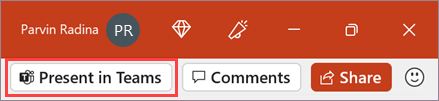
If your presentation is already open in PowerPoint for Windows or Mac, go to the file and select Present in Teams.

If you’re in PowerPoint for the web, select Present > Present in Teams.
Navigate through the slides
You have several tools to use while you present your slides.

- Use the navigation arrows to go forward and backward.
- Use the thumbnail strip to jump ahead or backwards.
- Select Go to slide or Grid View to see a grid view of all slides in the presentation. Select one to jump to it.
Stay connected to the your audience
One of the benefits of using PowerPoint Live to present instead of sharing your screen is that you have quick access to all your meeting tools you need to engage with the audience using one view. This is especially helpful if you’re presenting from a single screen.
- Turn Chat on or off to view what your audience is saying.
- See audience reactions and raised hands in real-time.
- Change the Layout of your presentation and choose how your live camera feed appears in your presentation, like Standout or Cameo.
- Use the Laser pointer, Pen, Highlighter, or Eraser to clearly reference items on your slides.
- Use the Private view toggle to turn slide navigation off for participants in the meeting.
Audience view
As an audience member, you’re can personalise your experience without affecting anyone else.
- Use the navigation arrows to move around to different slides. Go back to check on information you may have missed or go forward to preview upcoming slides. You can always get back to where your presenter is by selecting Sync to Presenter.

Note: If presenters don’t want people to be able to independently navigate through a PowerPoint file they are sharing, use the Private view toggle to turn it off.
- Click any hyperlink on slides to get more context right away.
- Interact with videos on slides to adjust the volume or jump to a timestamp and consume it at your own pace.
- Use a screen reader to get full access to the slide content.
- Switch to a high contrast view to make the slides easier to view if you have low vision. Select More options > View slides in high contrast.
- Translate the slides into one of 19 languages. Select More options > Translate slides and then choose a language.


